Image

Advisor Hub presents a list of all advisees currently active in their academic programs.
The top-level information displayed for a student includes:
If applicable, an advisor can release a student’s Eligible to Enroll hold.
There are direct links to a student’s pages for:
The advisor views these pages from the student’s perspective via the View As Student feature, which can also be launched through the View As Student icon.
As a reminder, the View As Student functionality provides view-only access from the student’s perspective. An advisor cannot perform actions as the student (e.g., enrolling in a class, changing the student’s preferred name).
When the advisor exits a page, they are returned to their full list of advisees at the row for the student they were previously reviewing.
The top-level display also allows advisors to:
Advisors can utilize search filters to narrow their focus to a certain subset of their advisees.
The filter options include:
The preset filters are:
Finally, Advisor Hub offers advisors ways to:
Go to the DukeHub springboard via the URL https://dukehub.duke.edu. Click on the Student, Faculty, and Advisor Login tile. This will prompt you to authenticate with your Duke NetID and password.
You will arrive at your Dashboard. A menu bar to left allows you to navigate to other pages in DukeHub. Select the Advisor Hub menu item to view your advisees’ information.


Click the “>” icon to enter the expanded view for more information.

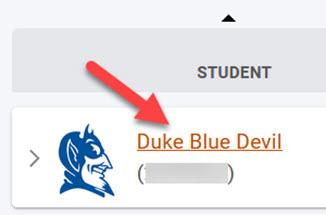
Hover over a student’s photo for an enlarged view. Clicking on the photo will take you to the student’s General Information page which lists their preferred name, ID’s, and academic program.

Select a student’s name to email them directly.
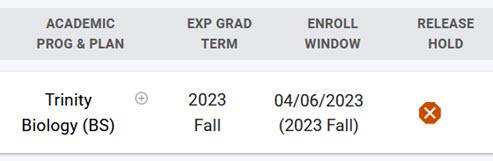
ACADEMIC PROG & PLAN: A student’s primary academic program and plan are displayed. If a student has more than one academic plan (e.g., second major, minor, certificate) a “+” icon appears next to their primary plan.
EXP GRAD TERM: Student’s expected graduation term.
ENROLL WINDOW: The date that a student’s enrollment window begins for the upcoming academic term if one has been assigned. The academic term related to that window is also displayed.
RELEASE HOLD: If you must approve a student for enrollment and they have a “Not Eligible to Enroll” registration hold on their record, an “X” icon will appear. Select the “X” icon to release the hold from the student’s record. When the hold is released, the “X” icon will no longer display.


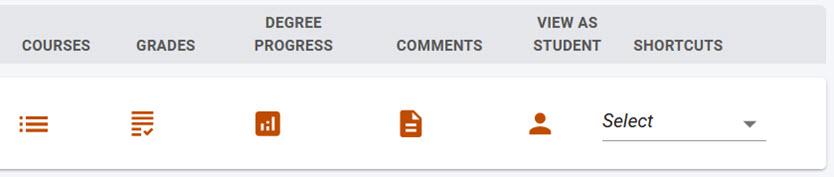
COURSES: Open a student’s Courses page. You view this page from the student’s perspective via the View As Student feature, but you cannot complete any transactions as the student.
GRADES: Open a student’s Grades page. You view this page from the student’s perspective via the View As Student feature, but you cannot complete any transactions as the student.
DEGREE PROGRESS: Open a student’s Degree Progress page. You view this page from the student’s perspective via the View As Student feature, but you cannot complete any transactions as the student.
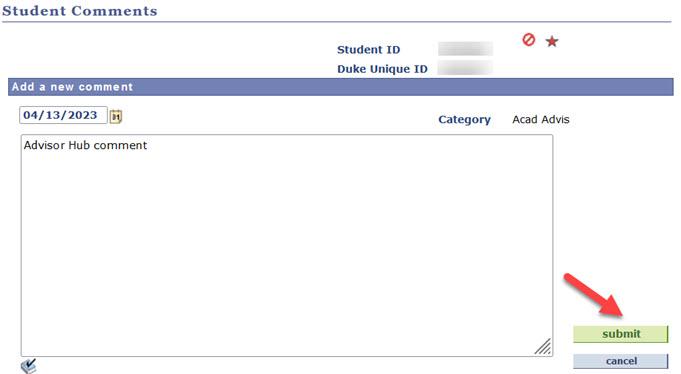
COMMENTS: Open a student’s Student Comments page in a new browser tab. You view your previously entered comments, or create a comment by selecting “Add a new comment.”
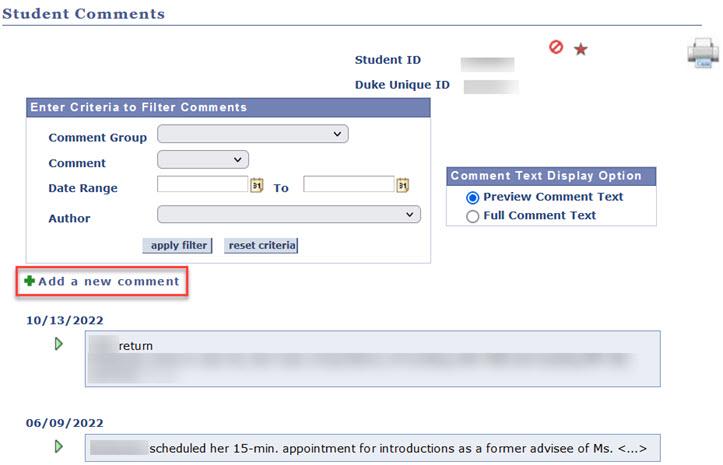
Enter the comment, select the "Submit" button, and close the window.
VIEW AS STUDENT: Launch the View As Student feature and open a student’s Dashboard. The View As Student functionality provides view-only access from the student’s perspective. An advisor cannot perform actions as the student.
SHORTCUTS: A drop-down menu of links to view certain pages via the View As Student feature. The pages available through Shortcuts are Schedule, Shopping Cart, First Year Questionnaire, Long Range Plan, PhD Graduation Tracker, Test Scores, and What-If. The Shortcuts options are dependent upon the student’s career as not all careers utilize all these pages in DukeHub. For example, an Undergraduate student would have the First Year Questionnaire (FYQ) shortcut, but a Divinity School student would not.

The expanded view provides a concise snapshot of a student’s academic information. When you select the “>” icon to enter the expanded view, the student’s row will be outlined in a light yellow to help distinguish them from other students’ rows.

Academic Plans: All active academic programs and plans. This includes first majors, second majors, minors, certificates, and sub-plans.

Class Schedule: A student’s schedule with the most recent enrollments. Advisors may view the number of units a student is enrolled in, the class subject, catalog number, section number, and meeting pattern. Hovering over the class subject, catalog number, and section number will show the class title.
If a student is waitlisted in a class, an orange square will appear next to the class with the student’s waitlist position number inside. Units for waitlisted classes are not included in the Enrolled Units count.

Shopping Cart: Provides a link to the student's Shopping Cart page. Classes that a student has selected in their Shopping Cart are listed below the link. Hovering over the class shows the class title.

Holds: Any holds on a student's record that block registration.

Student Groups: Active student groups on a student's record.

Advisors: The academic advisors, academic deans, and financial aid counselors assigned to a student. Select an advisor's name to email them directly. Select "Email All Advisors" to send an email to all advisors.

GPA: A student's GPA for the current term and their cumulative GPA.

Grades: A student’s classes for the current term and any midterm or final grades that have been posted to their records. Hovering over the class shows the class title. Select “Unofficial Transcript” to open a PDF version of the student’s unofficial transcript in a new browser tab. NOTE – Pop-up blockers must be disabled to allow the new tab to open.

Search filters allow advisors to restrict their display of students to only those who meet certain criteria.

Advisor Type: Search for students who are assigned to you under a specific type of advising role.

Career: Search for students who are active under a specific academic career.

Program/Plan: Enter text to search for students with certain academic program or plan descriptions. This filter is only searching at the top level and not considering program and plan information that is visible under the expanded view. For example, an advisor could search for “ology” and would find students with Biology as their primary major, but they would not find those with a Biology minor as that information does not display at the top level.

Keywords: Enter text to search for students with that text displaying at the top level under the “Student,” “Academic Prog & Plan,” “Exp Grad Term,” and “Enroll Window” columns. This filter is only searching at the top level and not considering information that is visible under the expanded view. For example, searching for “ra” can find students with “ra” in their name. Similarly, searching for “25” can find students with “25” in their EMPLID or expected graduation term.


There are also preset filters, some of which are capable of searching through information that only appears under the expanded view. The preset filters are New Advisees, Advisor Holds, and Grades Alert.
New Advisees: Searches for students who were assigned as an advisee after a given date that the advisor specifies.


Advisor Holds: Searches for students for whom an advisor must release "Not Eligible to Enroll" holds.


Grades Alert: Searches for students with recent grades of at least one of the following: C-, D+, D, D-, F, I, N, NC, X, Z, U.


The download button allows advisors to export a list of their advisees to an Excel file to the web browser. The file contains:
If an advisee has a primary major (primary academic plan) and a secondary major (secondary academic plan), then the student will have one row for each major in the Excel file.
Please note, the filters in Advisor Hub do not impact the downloaded list of advisees. If an advisor sets filters prior to selecting the download button, the exported file will contain information for all the advisees and not only the advisees who appear in the filtered results. Advisors can use filters within the Excel file to adjust their list of advisees.


Stellic is a degree management platform that outlines a student's degree requirements and their progress toward completing those requirements. The Stellic button opens an advisor's view of Stellic in a new web browser tab upon login.
Please note, Stellic is only available to advisors if they are assigned to a student who has an active Stellic account. Questions or concerns about access to Stellic can be directed to the Office of the University Registrar at registrar@duke.edu.


An Advisor whose advisees are not active in Stellic will not be able to log into the platform and will receive a message stating that Stellic is not currently available to them.

The Advanced Class Search button allows advisors to easily launch the Advanced Class Search page in order to look up class information.


Advisors are able to email an individual student, some students, or all students.
Email one student by selecting their name.

Email a subset of students by filtering for them, then select "Email All".

After selecting the "Email All" button there will be options regarding how to email students. The "Select email system" allows advisors to launch an email system (such as MS Outlook) with the email addresses populated, while the "Copy email list" allows advisors to copy and paste the email addresses into an email.

When you log into DukeHub, the Advisor Hub page will have students sorted based on the "Student" column in alphabetical order.


Select the "View as Student" icon to launch the View as Student feature and open a student's dashboard. The View as Student functionality provides view-only access from the student's perspective. An advisor cannot perform actions as the student.

Student Dashboard: View as Student takes the advisor to the student's Dashboard page. The dashboard is basically an abridged, high-level graphical view of the student's information that is available via menu items to the left of the page. When you select an item on the dashboard, it will open that same page that appears on the left-hand menu.
A student has two views - a General View and an Academics View. Each view contains several widgets. Students are able to remove some widgets from the dashboard, but students cannot remove the "Holds" widget.
Selecting the "Exit" button will stop viewing as the student and return to Advisor Hub.


Selecting any of the Dashboard items will open the related page visible on the left-hand menu.


Schedule: Provides list and graphical views of a student’s class schedule and exam schedule for a given term. Advisors can review detailed information about classes, including an instructor’s email, and textbook information. This is the same information that a student sees about their classes. This page is accessible through a shortcut (Schedule) in Advisor Hub.

Advanced Class Search: Searches for classes in a given term based on specific criteria, such as career, subject, meeting pattern, course attributes, and other options.

Simple Class Search: Searches for classes in a given term based on career and subject.

Course Catalog: Searches for active courses (not all of which are offered in a given term) based on career, subject, and catalog number.

Textbooks (eCampus): Opens a link to the eCampus website in order to search for textbook assignments for a particular class in a given term.

Planner: The courses a student may be planning to enroll in across various terms. NOTE - - only Nursing and Undergraduate students use Planner.

Schedule Builder: The classes and schedules a student has saved in Schedule Builder. Students can save up to 5 favorite schedules.

Shopping Cart: Classes a student has placed in their shopping cart. Click on ">" to find more information about the class, including assigned textbooks, and course synopsis (if available). This page is accessible through a shortcut and the expanded view of a student's row in Advisor Hub.


View Wait List: Details for classes a student is waitlisted in, including their position on the waitlist.

Enrollment Dates: The key dates for when shopping carts open, enrollment appointments start and end, and enrollment limits.

Programs: A student's academic program and plan information and program status. This information is also available through the expanded view of a student's row in Advisor Hub.

Advisor Information: Contact information for a student's academic advisor(s), academic dean, and financial aid counselor. This information is also available through the expanded view of a student's row in Advisor Hub.

Course List: Displays all planned, in progress, taken, and transferred classes. Filter classes based on status, grade, or keyword search. Sort classes by column. This page is also accessible through the top level of a student's row in Advisor Hub.

Grades: All grades in a given term. This page is also accessible through the top level of a student's row in Advisor Hub.

Student Milestones: Any milestone examinations a student has completed or is working toward.

Test Scores: Any entry test scores a student has reported, both officially and self-reported.

Transfer Credit: Any course, test, or other academic credit a student has had transferred to their Duke academic record.

Degree Progress: Depending upon the student’s academic program, the Degree Progress page presents a summary of research requirements or a link to Stellic, the degree management platform where a student’s degree requirements are outlined This page is accessible through the top level of a student’s row in Advisor Hub.


What-If: The records of any What-If reports the student has generated. This page is also accessible through a shortcut in Advisor Hub.

Student Groups: Any student groups placed on a student’s record. Students do not see this information. NOTE – Only Undergraduate students have this menu item.

Long Range Plan: The status of a student’s Long Range Plan and their responses. This page is accessible through a shortcut (LRP) in Advisor Hub. NOTE – Only Nursing students use Long Range Plan.

Major Declaration: Instructions to students for completing the Rising Sophomore Questions. NOTE – Only Trinity Undergraduates use Major Declaration.

First Year Questionnaire: A student’s responses to the First Year Questionnaire. This page is accessible through a shortcut (FYQ) in Advisor Hub. NOTE – Only Undergraduates use First Year Questionnaire.

PhD Graduation Tracker: Collection of academic activity related to degree requirements for PhD students, contact information for committee members, and Graduate School resources. This page is accessible through a shortcut (PhD Trck)in Advisor Hub. NOTE – Only PhD students use PhD Graduation Tracker.

To Dos: Any items assigned from offices across the university that a student needs to complete. To Do items may need to be completed outside of DukeHub. Completed items will not display.

Tasks: Multi-step surveys assigned from offices across the university. Both outstanding and completed tasks will display.

Holds: Any holds on a student's record that will prevent them from enrollment, the reason for the hold, and the individual or department that placed the hold.

Message Center: Record of communications a student has received from central offices at Duke.

Basic biographical and identifying information can be found under My Profile. The left-hand navigation under My Profile is the same as the tabs on the top of each page, so you can move between pages either way.
General Information: A student’s preferred name, ID’s and academic program/s. This page is accessible through the top level of a student’s row in Advisor Hub.

Biographical Information: A student's names, date of birth, sex, gender pronouns, and military status. The preferred name is displayed in Advisor Hub, but the primary name can be found here:

Contact Info: A student's addresses, phone numbers, and email addresses.

Emergency Contacts: A student's emergency contact(s), their relationship to the student, and their phone number.

View Student Groups: Any student groups currently active on a student’s record. Students do not see this information. This information is available through the expanded view of a student’s row in Advisor Hub. NOTE – Only Undergraduate students have this menu item.
